
Add subscribe and save to a bundle
Sell a bundle or quantity break as a subscription using the plans from your subscription app.
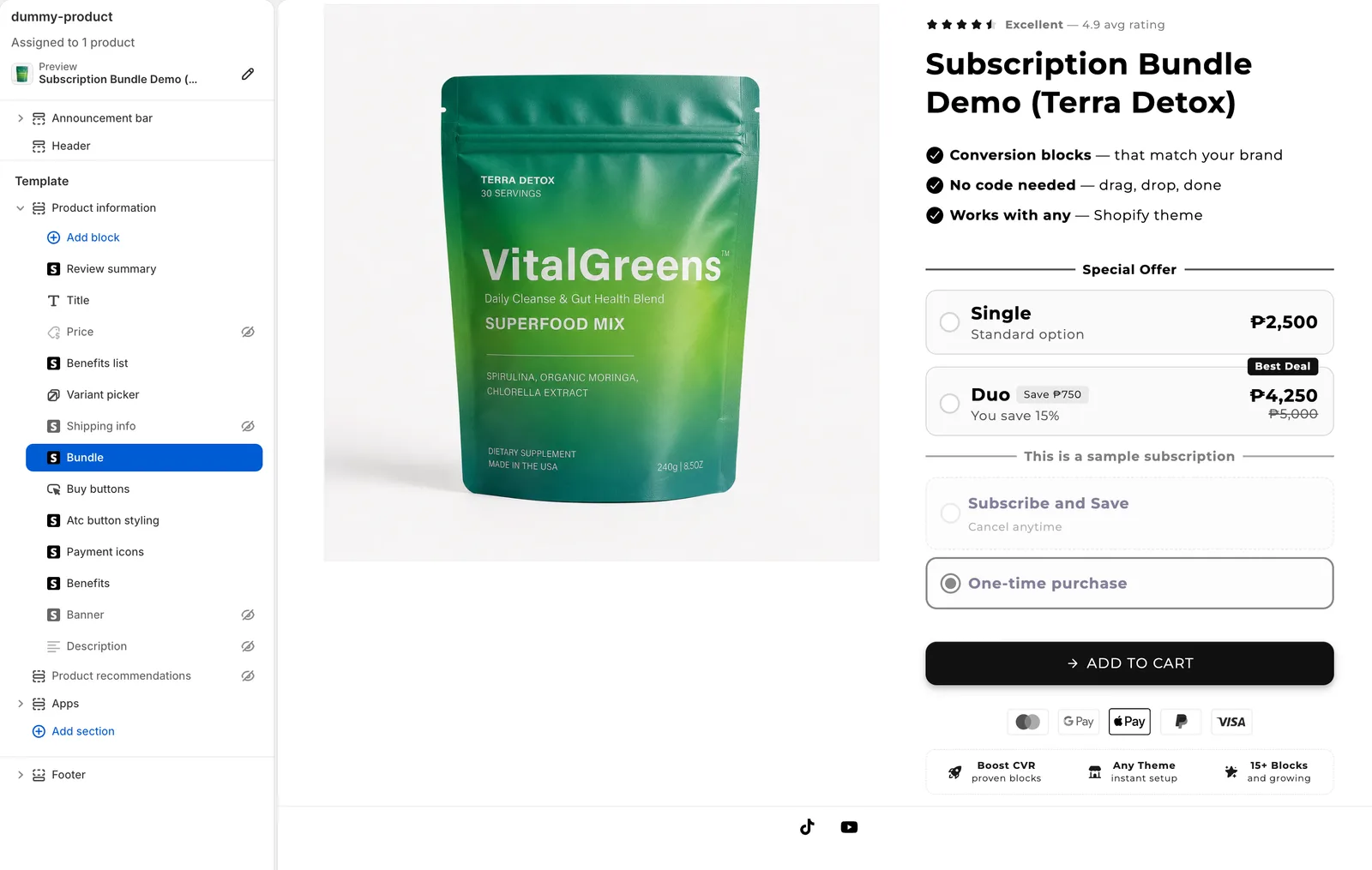
A bundle can show a Subscribe and Save / One-time purchase choice next to its offers. Turn on the switch in the Subscription card. We don't create subscriptions. The bundle uses the plans your subscription app already has.
Before you start
- The product needs a subscription plan from an app such as Shopify Subscriptions, Recharge or Appstle. The editor says "Requires a subscription app installed."
- The variants you sell must be in that plan.
Turn it on
- In Shopify admin, open Apps → Section Store → Bundles.
- Open the bundle, or click Add bundle, then Build your own, and Choose on Subscription.
- On the Setup tab, find the Subscription card.
- Turn on its switch. The card opens. The Subscription preset starts with the switch on, so click the card to open it.
- Set Discount duration (billing cycles). See below.
- Pick a Layout: a checkbox, radio buttons or stacked radio buttons.
- Set Display Position: Below bundle offers or Above bundle offers.
- Edit Subscribe title, Subscribe subtitle, One-time title and One-time subtitle. The one-time fields are off with the checkbox layout.
- Under Products, pick Selected products or Selected collections. All products is the default for a new bundle. Without this step, the deal applies to every product in your store. Keep All products only if you want that.
- Click Select products or Select collections, then pick the items and confirm.
- Click Save. On a draft, click Publish to go live.
The product page now shows the offers plus the subscribe choice.
Discount duration
This sets how long your bundle discount keeps applying to a subscription. It starts at 1.
- 0: every order, forever.
- 1: the first order only.
- 2: the first two orders, and so on.
What each setting does
- The Subscription switch: lets the bundle discount apply to subscription orders and shows the subscribe choice.
- Header: a label above the choice. Leave it empty to hide it.
- Style like the offers: rows use the offers' colors, borders, corners and text.
- Show prices: subscribe shows its price with the one-time price crossed out.
- Hide a lone offer: with one full-price offer, shoppers see only subscribe or one-time. Variant pickers stay.
- Subscribe benefits: a benefits list in the subscribe choice.
How it works
- The bundle discount and your subscription app's own discount both apply.
- A Fixed price offer adjusts for the plan's own discount.
- In a Mix and match offer, only plans every chosen product shares show.
- Add-ons join with Enable subscription on the add-on.
If it doesn't work
- The choice doesn't show: read Why isn't subscribe and save showing on my bundle?
- Renewals lose the discount: read Why does the bundle discount stop after the first subscription order?
Related
Also searched as: appstle, billing cycles, bundle discount subscription, bundle subscription, checkbox layout, discount duration, enable subscription, how to add subscriptions, one time purchase, one-time, quantity break subscription, radio buttons layout, recharge, recurring order, recurring purchase, seal subscriptions, selling plan, selling plans, shopify subscriptions, subscribe and save, subscribe option, subscription app, subscription bundle, subscription header, volume discount subscription
Did this answer your question?