
Build a product page with AI
Build a full product page with AI, with a new buy box and sections below it. Then assign it to your product.
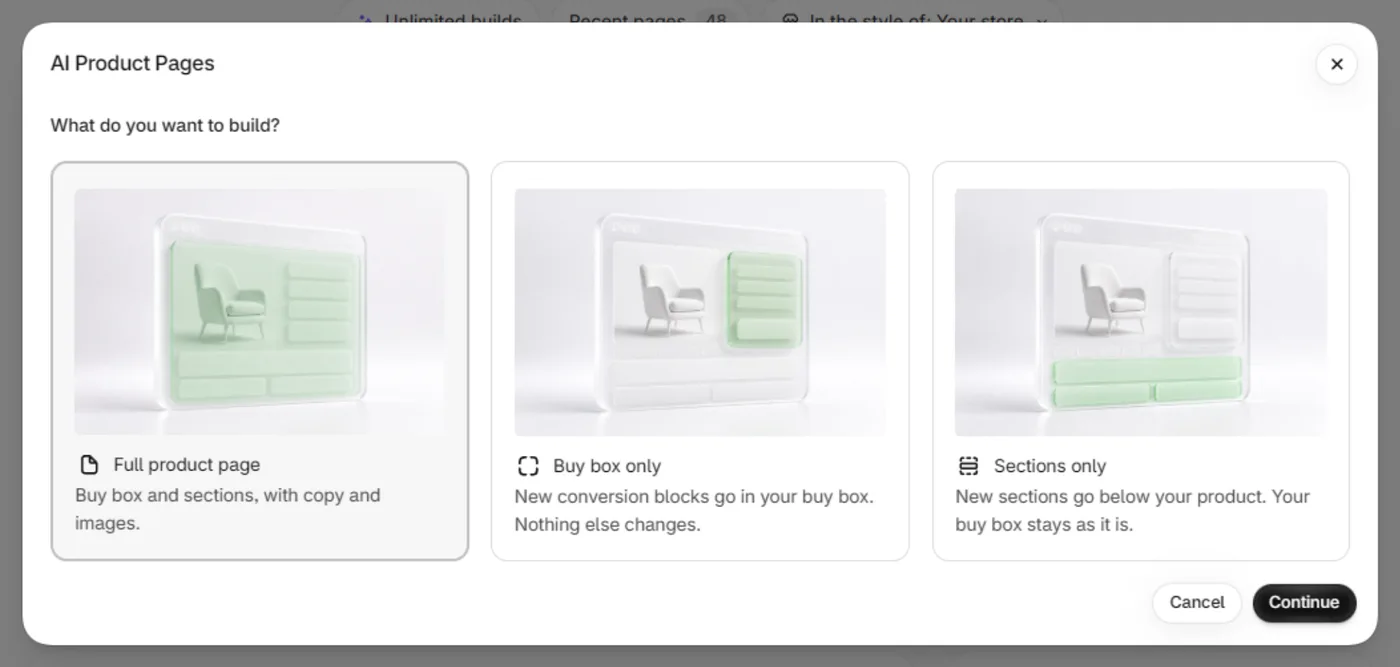
Open AI Pages, click Build product page and pick Full product page. We build a new template with conversion blocks in the buy box and 4 to 6 new sections below it. Your live page doesn't change until you assign the template.
Before you start
- You need an active Plus subscription. A free trial counts.
- You need one credit. Every store gets 5 free.
Build the page
In Shopify admin, open Apps → Section Store → AI Pages.
On the Product page card, click Build product page. The AI Product Pages window opens.
Under What do you want to build?, pick Full product page. Click Continue.
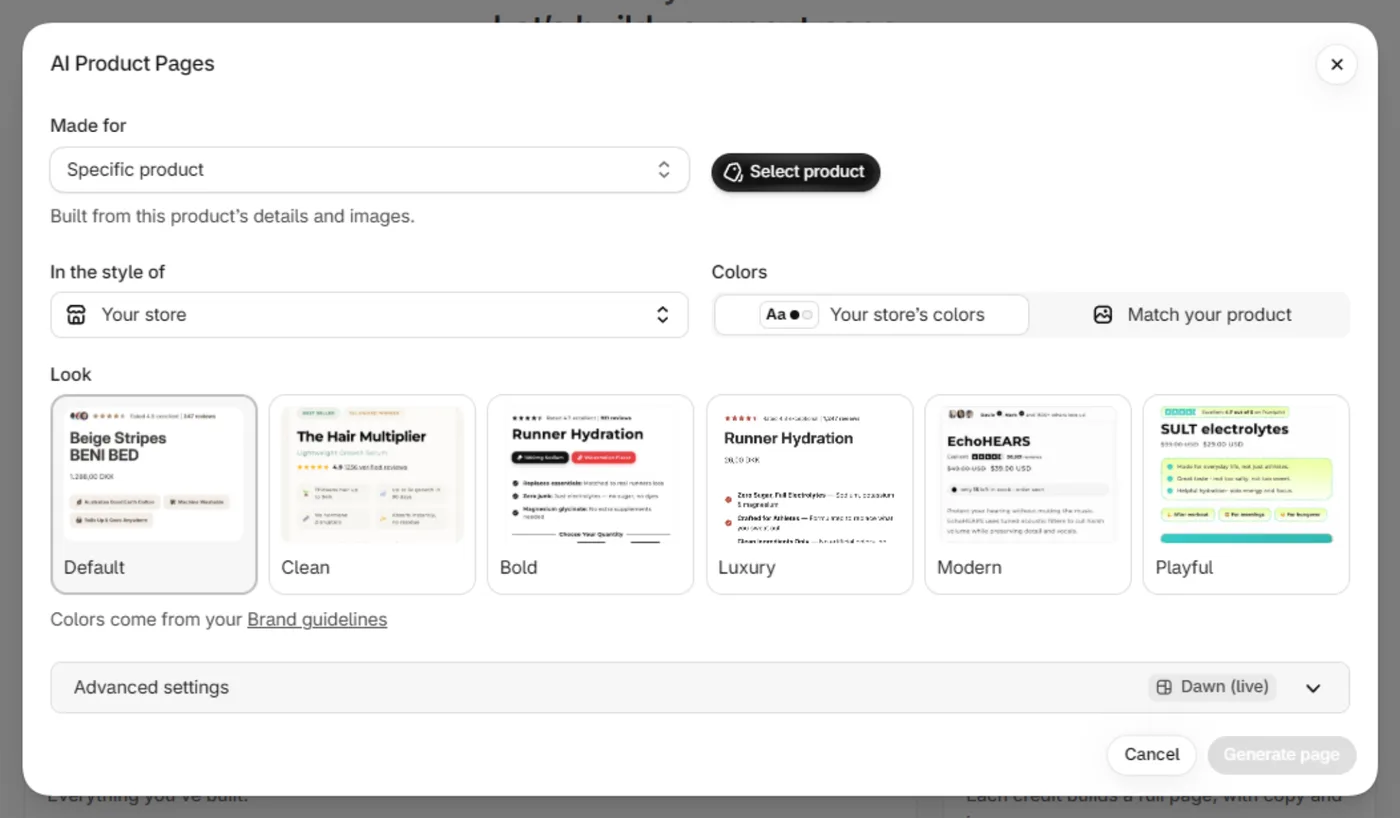
Under Made for, leave Specific product and click Select product. Pick your product.
Wait while Checking existing sections… shows. Under Keep below the new page, leave checked what you want to keep.
Optional: set In the style of, Colors and Look.
Optional: open Advanced settings for Theme, Template name, Start from template and Focus.
Click Generate page. It usually takes 3 to 4 minutes. You can close the window.
In Your product page is ready, click Open theme editor or Preview page to review it.
Click Assign to your product. You see Assigned to your product and the badge Live · 1 product.
What the build writes
- Headlines, benefits, FAQs, comparisons and reviews, from your product's title, description, details and photos.
- Images based on your product photos.
- A new buy box, with the same changes as Buy box only.
- A new template. Your old template stays as it was.
Check every claim and number before you assign the page. The AI writes sample reviews unless your product data holds real quotes.
If it doesn't work
- Generate page stays gray. Pick a product, and wait for the sections check to finish.
- "Check your product template". Your template or theme has a problem. No credit was used.
- Your buy box didn't change. Your product section can't take conversion blocks, so we added sections only.
- Customers still see the old page. The product isn't assigned, or the page is on a theme that isn't live.
Related
- Build only the buy box with AI
- Add AI sections below my product
- Keep my reviews and other sections below the new page
- Assign an AI page to a product
- Fix the "Check your product template" error
- Are the reviews on my AI page real?
- Why can't customers see my AI page?
Also searched as: ai product page, ai product page setup, product page setup, generate page, generate product page, full product page, build product page with ai, ai generated page, ai generated sections, ai template, ai product template, specific product, style settings, advanced settings, product page generator, ai pdp, generate page gray, generate button greyed out
Did this answer your question?