
Add a countdown bar to your bundles
Show how long a bundle deal has left. The bar counts down to the bundle's real end date.
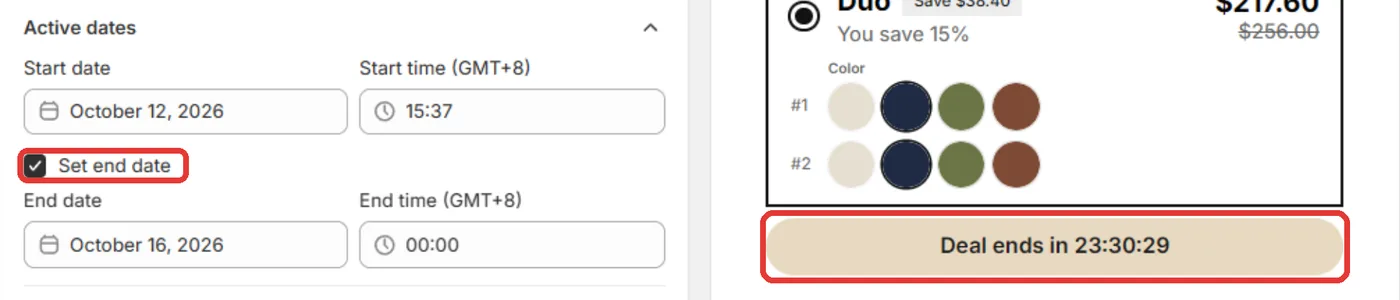
A Countdown bar shows shoppers how long the deal has left. It counts down to the bundle's end date and hides when the deal ends. It's off by default.
This bar lives inside the bundle. It isn't the Countdown timer Conversion Block or a countdown section from the catalog.
Before you start
The bar needs an end date. You pick it in the Countdown bar card, in the steps below. It's the same date as Set end date under Settings → Active dates, so changing one changes the other.
Turn it on
- In Shopify admin, open Apps → Section Store → Bundles.
- Open the bundle.
- On the Setup tab, scroll to the Countdown bar card, below Checkbox upsells, and turn on the switch.
- Pick the End date and End time.
- Under Place, choose At the end, below the add-ons or Above the deals.
- Edit Bar text. Keep
{{timer}}where the time left should show. The default is "Deal ends in {{timer}}". - Pick the Background and Text colors.
- Set Text size (10 to 40) and Corner radius (0 to 100).
- Click Save. On a live bundle, this updates your store at once.
How it works
- The bar counts down to the end date only. It never restarts, and it's the same for every shopper.
- To change when it ends, change End date and End time in the card, or Active dates under Settings. The card shows the time it counts down to.
- In an A/B test, every version uses the live bundle's end date. Only version A can change it.
- It shows mm:ss under an hour, hh:mm:ss under a day, then days, such as "2d 03:04:05".
- The bar text starts in your store's language. Translate it on the Translations page with your other bundle text.
If it doesn't work
- "Pick when this deal ends. The bar counts down to it, and the discount stops then.": the bundle has no end date. Pick the End date and End time in the card.
- "Set the end date in version A. The bar shows only when the bundle has one.": this shows on A/B test versions B to D. Only version A sets the date. Click version A in that message, then pick the End date and End time in the card.
- "Enter a time like 23:59.": type the End time as hours and minutes.
- The bar is gone: the end date passed. The bundle stops showing too.
- You want a bar that restarts for each visitor: bundles can't do this. The bar only counts to a real deadline. The Countdown timer block restarts for each shopper, so it isn't a real deadline. To add it, open Apps → Section Store → Conversion Blocks and click Edit In Theme on its card.
Related
Also searched as: countdown bar, bundle countdown, countdown on bundle, countdown on bundles, bundle timer, deal timer, timer on bundle, time left, deal ends in, urgency bar, urgency timer, countdown not showing, countdown bar not showing, countdown missing, countdown hidden, set an end date, set an end date in active dates, limited time bundle, flash sale bundle, sale countdown, countdown position, above the deals, below the add-ons, countdown placement, bar text, timer placeholder, {{timer}}, countdown text, change countdown text, countdown colors, countdown background, countdown text color, countdown text size, countdown off, turn on countdown, countdown switch, countdown translation, translate countdown, countdown wrong time, countdown ended, hide when deal ends, quantity break countdown, quantity breaks timer, evergreen countdown
Did this answer your question?