
Simple way to change product template
If you want to assign a product template to multiple products, visit this article:
Otherwise, proceed with the steps below.
This guide will show you the easiest way to change the product template for your products.
Go to theme editor
Choose any product template.
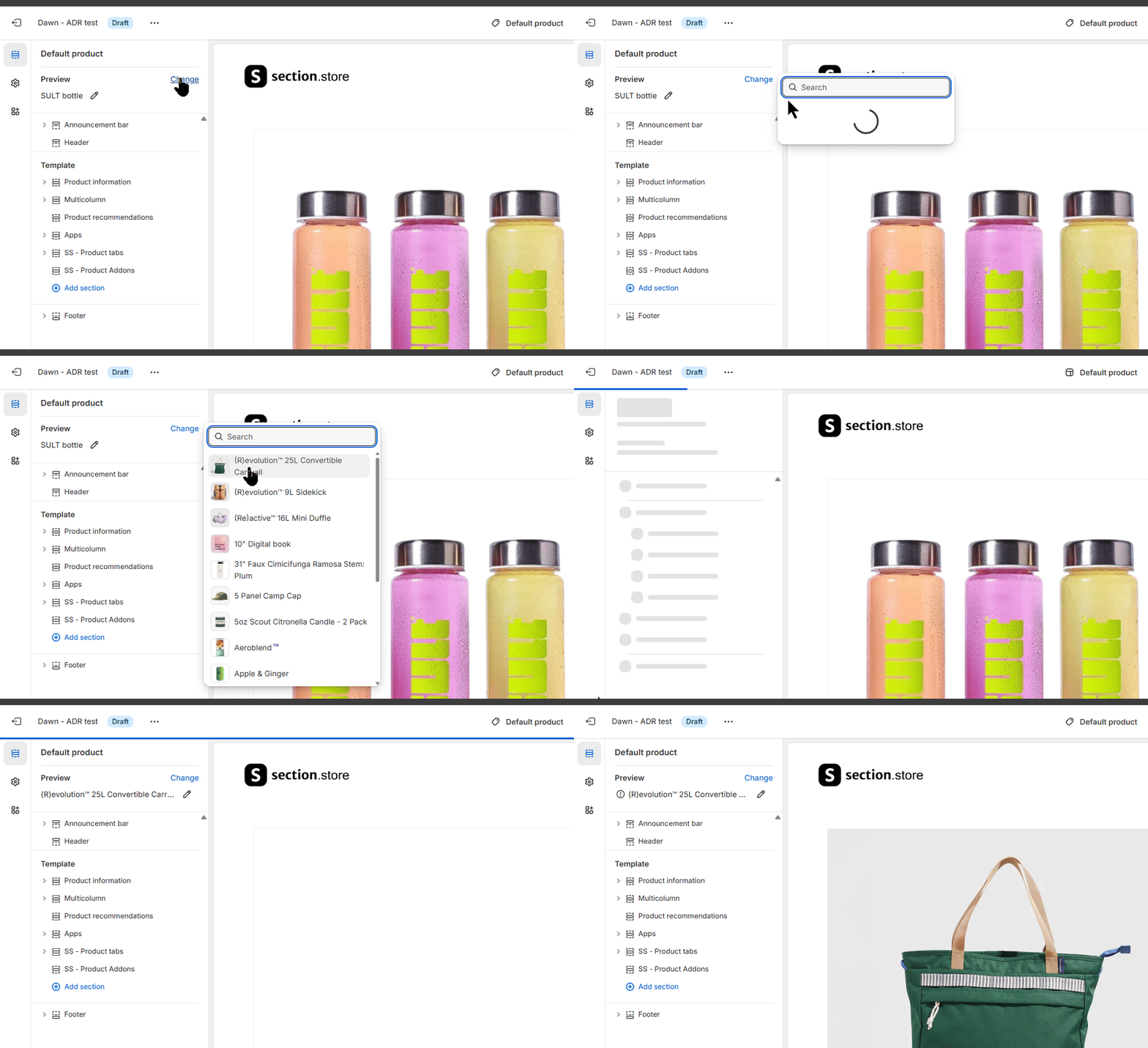
On the "Preview" group, click the "Change" link and select your product you wanted to update the product template.
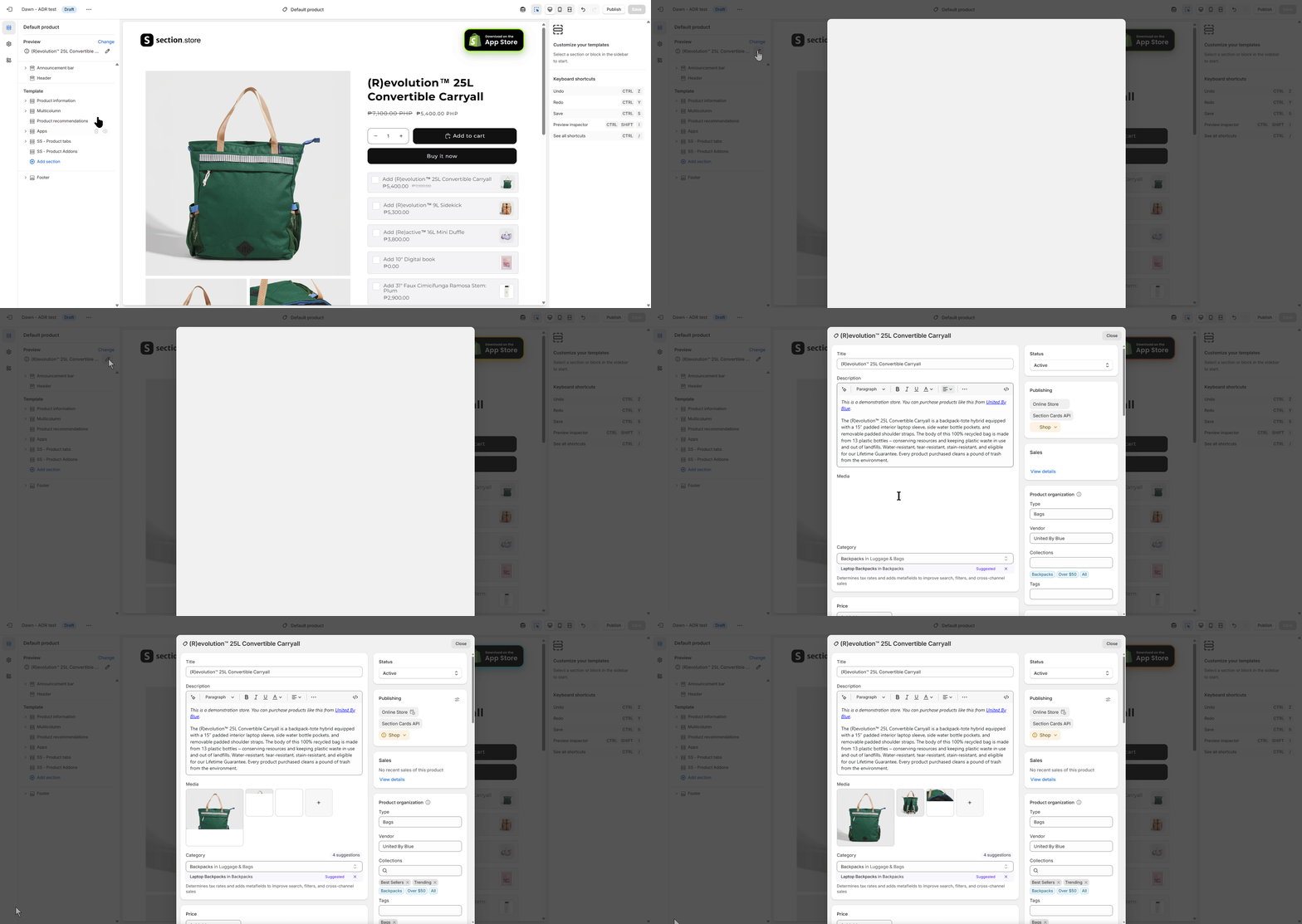
After you chose the product, click the "Pen" icon to edit your product. This will open the product page in popup window.
By there, you may be able to switch product templates.
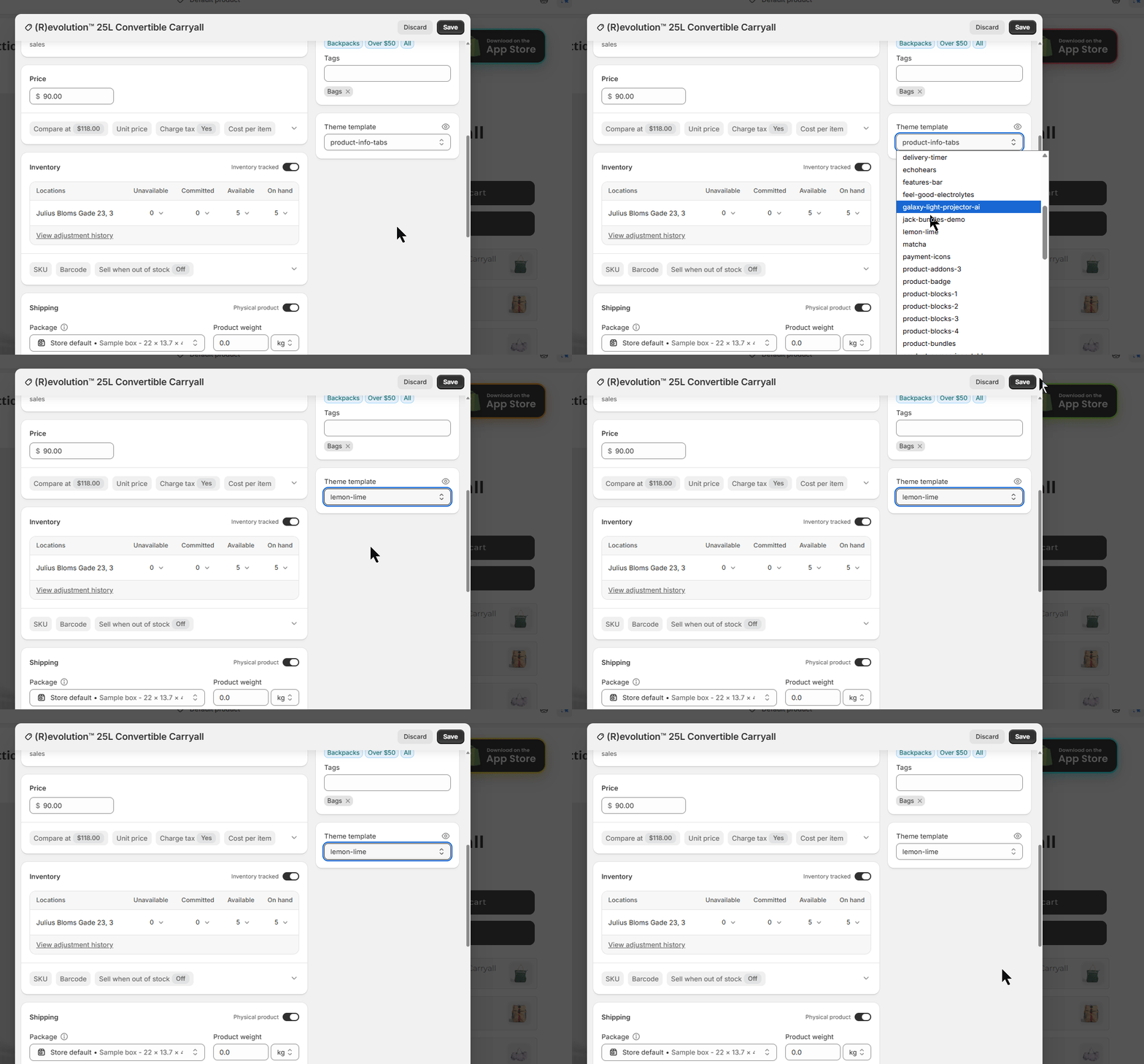
Now you have it. The simple way of changing product templates for your products. Feel free to contact us if you need further help or have some questions.
Related articles
Also searched as: alternate template, apply template to product, assign product template, assign template, change product, change template, choose template, custom product template, default product template, easy way change template, edit product, how to change product template, pen icon, preview product, product page template, product template, product wrong template, quick way to change template, section not on this product, set template, single product template, switch template, template assignment, template dropdown, template for one product, template not showing, template selection, template switcher, theme editor preview, theme editor product, which template, wrong template selected
Did this answer your question?