
Countdown Timer Bar Text Translation
To change the "Days," "Hours," "Minutes," and "Seconds" text via code, please follow these steps:
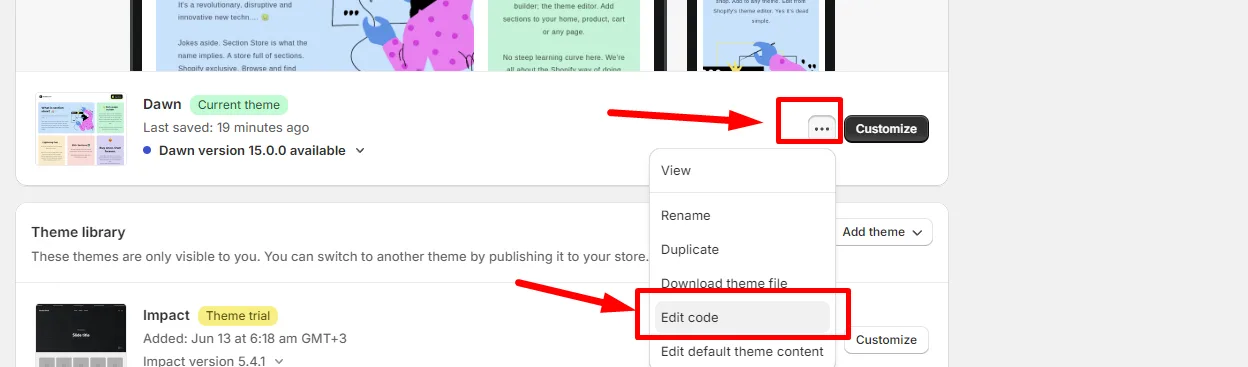
- Go to your theme where the section is placed and click "Edit code."
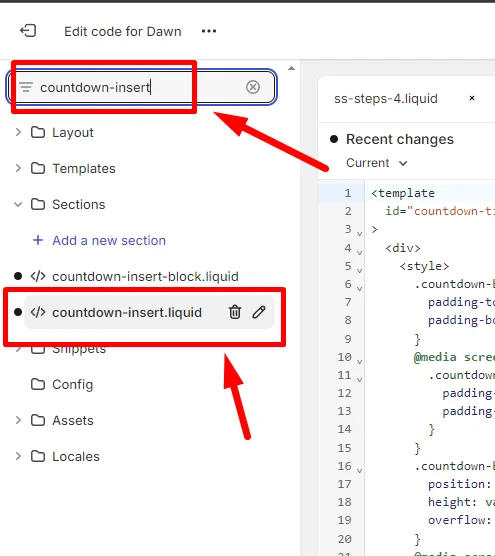
- Use the search field to find "countdown-insert."
- Search for "Days" in the code to locate the text you wish to change.
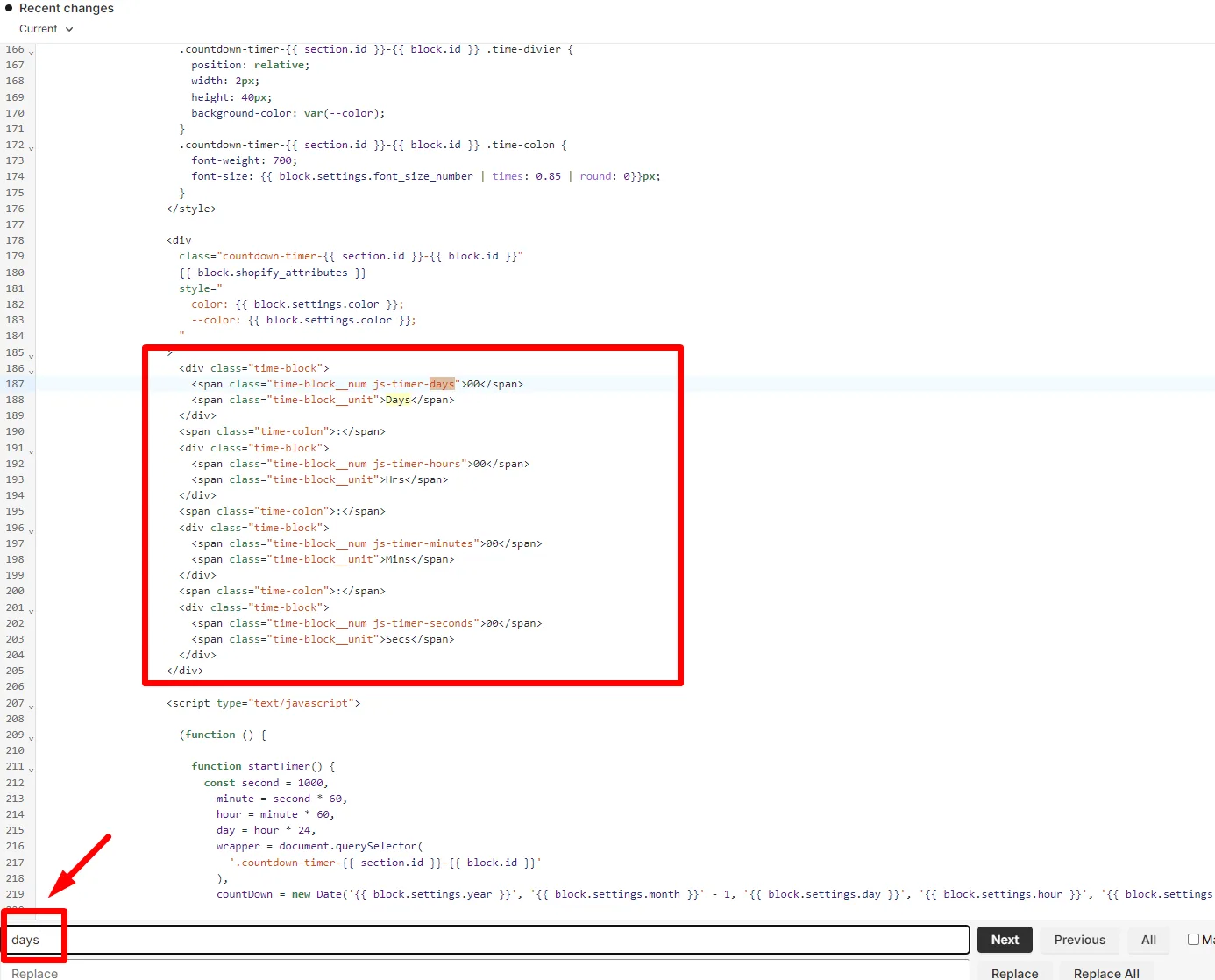
- Update the text as needed, ensuring you do not overwrite any opening or closing tags (e.g., < >).
- Save your changes.
Related articles
- Add Announcement Bar To Top / Header
- Footer / announcement-bar section on all pages
- Feature Requests
Also searched as: countdown translation, translate countdown, countdown timer text, timer text, translate timer, days hours minutes, translate days, translate hours, other language, second language, not translated, still english, wrong language, translate bar, announcement translation, countdown bar, sale timer, translate and adapt, translate & adapt, localization, localize, multilingual, french, german, spanish, dutch, italian, portuguese, language switcher, markets, translation missing, label text, custom labels, change wording, edit text, timer labels, expired text, urgency bar
Did this answer your question?