
Set up a Mix & Match bundle deal
Let shoppers build their own bundle from other products, with a price for each item.
Mix & Match lets shoppers keep the product they're looking at and add other products to it. Each item has its own quantity and price. The items go in the cart as one set, and the discount needs the whole set. Shoppers see the deal only after you click Publish, or Save on a live bundle.
Set the Products rule before you publish. A new bundle starts on All products. Without that step, the deal applies to every product in your store.
Set up the offer
- In Shopify admin, open Apps → Section Store → Bundles.
- Open a bundle, or click Create bundle deal and click Choose on a preset.
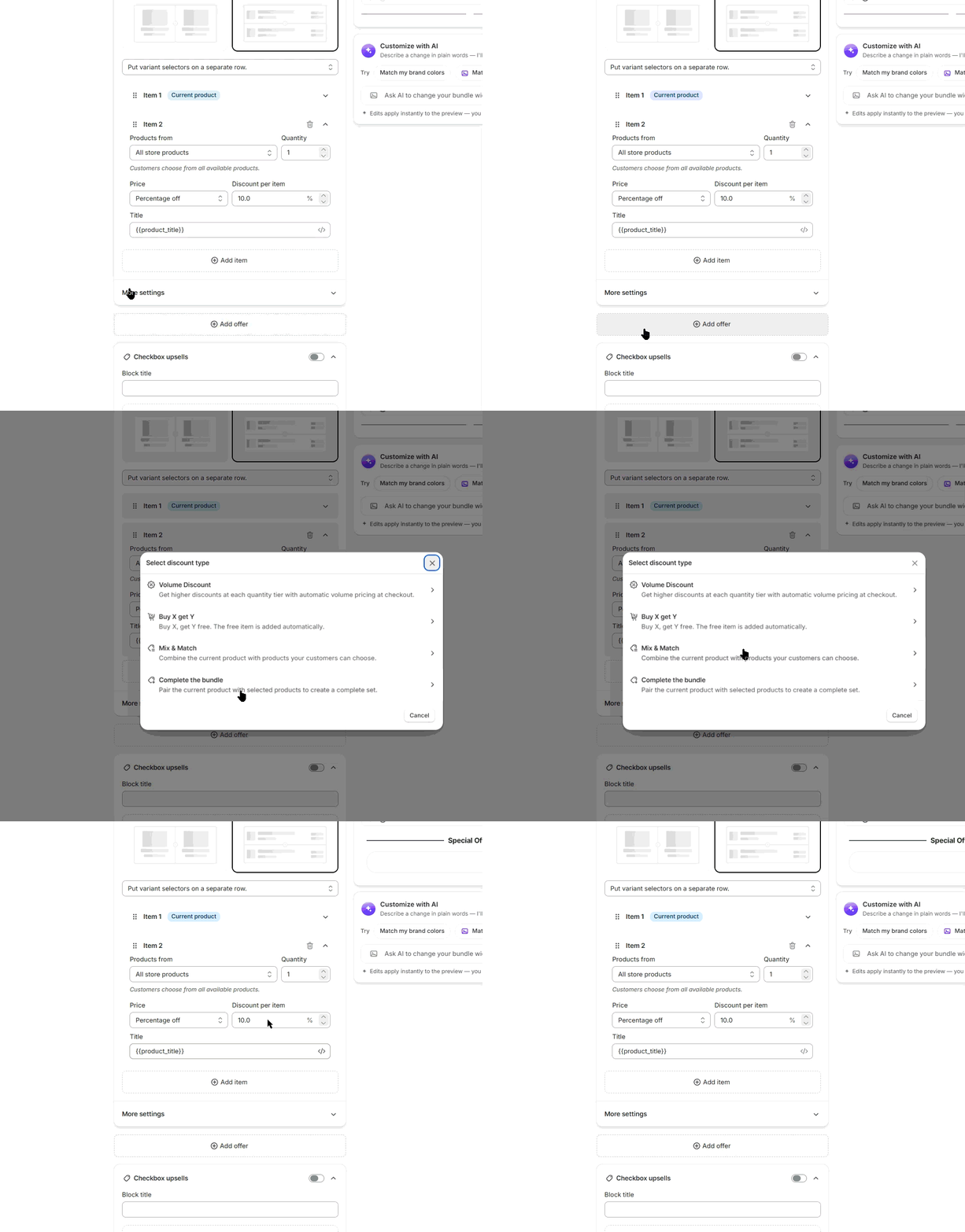
- Under Offers, click Add offer, then Mix & Match. The offer starts with two items at 10% off.
- Open Item 1. It's always the Current product, the product on the page. You can't remove it. Set its Quantity and Price.
- Open Item 2 and set Products from:
- All store products: shoppers choose from every available product. The row always starts empty.
- Selected products: click Select products and variants. Pick up to 20 products.
- Selected collection: click Select collection. One collection per item.
- AI recommendations: Shopify's recommendations for the product. Pick Related products or Complementary products under Auto recommendation type. Set Recommendation limit from 1 to 10.
- Set the item's Quantity.
- Set Price: Full price, Percentage off, Amount off or Fixed price. Fill in Discount per item or Price per item.
- Title defaults to
{{product_title}}, the product's name. - Set Require customers to choose a product. On, the row starts empty until the shopper picks. Off, the first available product fills the row. Items you add with Add item start with it on.
- Click Add item for more items. Drag the handle on an item to reorder it.
- Under Layout, pick Vertical or Horizontal. With more than two items, Horizontal scrolls sideways.
- Pick where variant pickers go: Keep variant selectors with the product details. or Put variant selectors on a separate row.
- Under Products, pick Selected products or Selected collections. All products is the default for a new bundle. Without this step, the deal applies to every product in your store. Keep All products only if you want that.
- Click Select products or Select collections, then pick the items and confirm.
- Click Publish, or Save on a live bundle.
How it works
- The bundle's Products rule decides which product pages show the offer. Companion items can be products outside that rule.
- The discount applies only while the whole set is in the cart with the right quantities. Removing one item drops the discount for the whole set.
- Add to cart waits for every empty row. Shoppers see "Choose a product to complete your bundle."
- A row with nothing to sell shows "Product unavailable". Read Why are products missing from the Mix & Match picker?
- Items added outside the widget never count toward a set.
- To sell several sets at once, turn on the Quantity selector. Shoppers then pick how many sets they want.
Limits
- 20 selected products per item, one collection per item, 1 to 10 AI recommendations per item.
- At most 100 collections across a bundle and its A/B test versions.
If it doesn't work
- "Add a companion product to publish": an item with Selected products has none. Click Add companion product.
- The discount drops in the cart: read Why isn't my Mix & Match discount working?
- Products are missing: read Why are products missing from the Mix & Match picker?
Related
- What shoppers see in a Mix & Match offer
- Change the Mix & Match product rows and picker
- Set up a Complete the bundle offer
Also searched as: mix and match, mix & match, mix match, build your own bundle, byob, build a box, build your own box, custom bundle, choose your own, pick your own, different products bundle, bundle different products, multiple products bundle, bundle two products, buy any 3, any 3 from collection, bundle from collection, gift box, gift hamper, hamper, variety pack, combo deal, combo, companion product, add item, current product, cannot remove first item, require customers to choose, empty slot, ai recommendations, all store products, 20 products limit, vertical layout, horizontal layout, per item discount, different discount per item, fixed price bundle, products from, discount per item, product_title, mix and match on one product, deal on every product
Did this answer your question?