
Create, copy and delete cart drawers
Keep several cart designs. Add a new cart, copy one, rename it or delete it. No Plus needed.
A store can keep as many carts as you like. Click Create cart drawer to add one, or copy a cart with Duplicate cart. New carts and copies start off, so they never replace your live cart by surprise. The one exception is a Plus store's first cart, which starts on. You don't need Plus to create carts.
To choose which cart shoppers see, read the article on switching your live cart.
Add a new cart
- In Shopify admin, open Apps → Section Store → Cart Drawer.
- Click Create cart drawer. The New cart drawer page opens.
- Click Use this cart on the Your store card or on a template. Create from screenshot works too.
- Change what you like and click Save.
The new cart shows as Draft in the list, unless it is a Plus store's first cart.
Copy a cart
- In Shopify admin, open Apps → Section Store → Cart Drawer.
- Find the cart in the list.
- Click Duplicate cart, the icon in the Actions column.
- The copy opens in the editor. It is named after the original, like "Cart Copy 1", and it is off.
A copy keeps the original's settings and translations.
Rename a cart
- In Shopify admin, open Apps → Section Store → Cart Drawer.
- Click Edit on the cart.
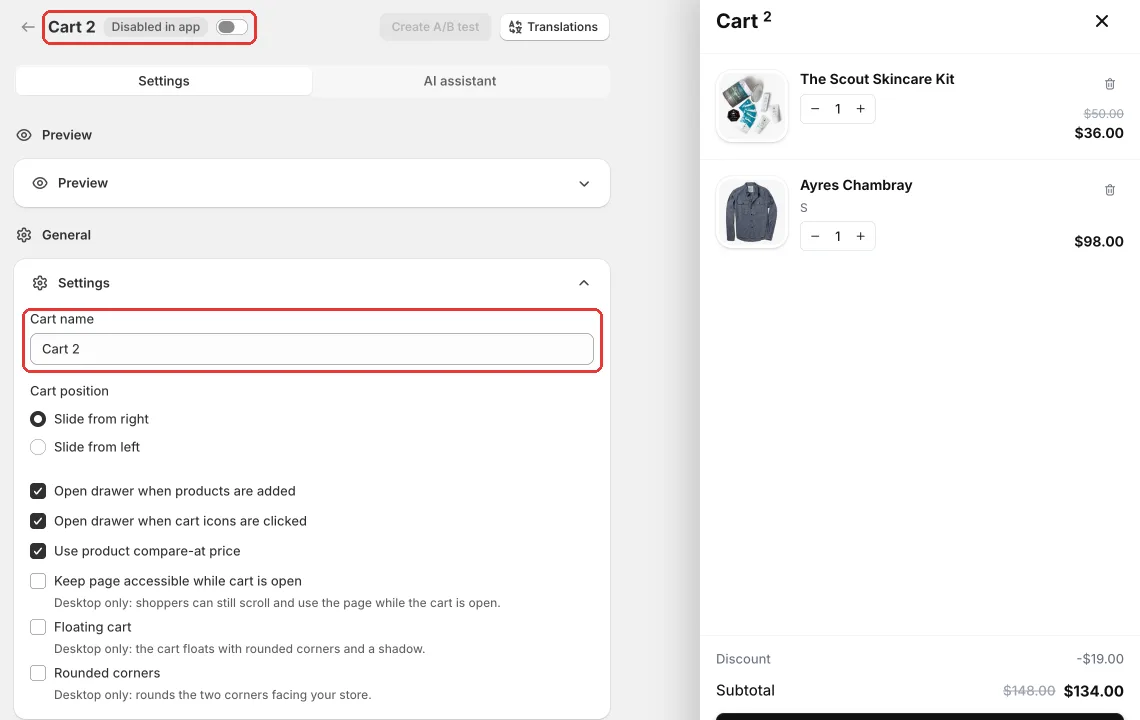
- Under General, open Settings.
- Change Cart name. Only you see this name.
- Click Save.
Each cart in a store needs its own name.
Delete a cart
- In Shopify admin, open Apps → Section Store → Cart Drawer.
- Click Delete cart, the trash icon in the Actions column.
- In the window, click Delete cart. The window warns: "Delete "Cart 2"? This cannot be undone."
Deleting the live cart leaves your store with no live cart. Shoppers get your theme's cart back and cart rewards stop.
You can't delete a cart with a running A/B test. You see "End the A/B test before deleting its live item." End the test first.
Find a cart
Type in Search carts above the list. It searches cart names.
Related
- Switch which cart drawer is live
- Create your first cart drawer
- Start a cart drawer from a ready-made template
Also searched as: multiple cart drawers, multiple carts, more than one cart, second cart drawer, two cart drawers, several cart designs, cart drawer draft, backup cart, cart drawer versions, search carts, add another cart, create cart drawer, new cart drawer, duplicate cart, copy cart drawer, clone cart, rename cart, cart name, delete cart drawer, remove cart, cannot undo delete, cant delete cart
Did this answer your question?