
Create dynamic reviews blocks for every product page
Connect the Reviews block to product metafields, so each product page shows its own reviews with no extra templates.
Connect the Reviews block's fields to product metafields. Each product then shows its own reviews, with no extra templates. You set this up once, then fill in the metafields on each product.
Before you start
- You need Section Store Plus or its free trial.
- Add the Reviews block to your product template.
Step 1: Create the metafields
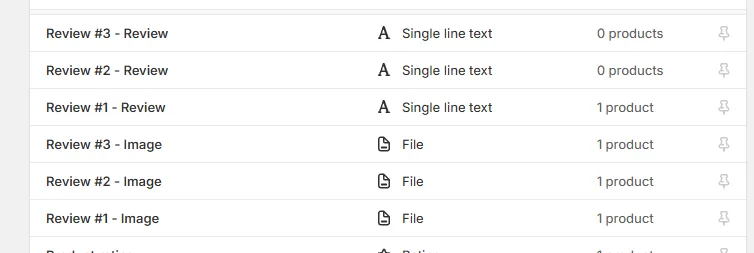
Each review uses up to three metafields. The namespace and key below are examples. Any key works.
| Field | Name | Namespace and key | Type |
|---|---|---|---|
| Image | Review #1 - Image | review1.image |
Image (File), One |
| Name | Review #1 - Name | review1.name |
Single line text, One |
| Review | Review #1 - Review | review1.review |
Single line text, One |
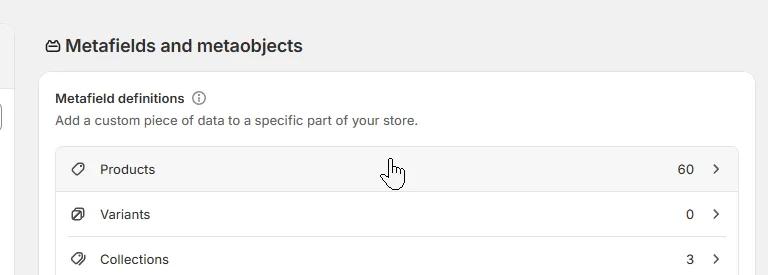
In Shopify admin, open Settings → Metafields and metaobjects.
Under Metafield definitions, click Products.
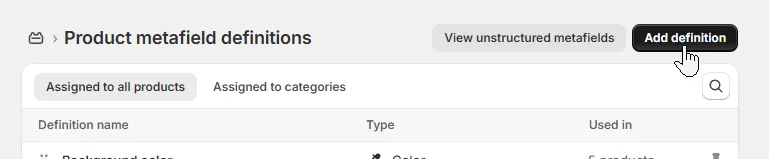
Click Add definition.
Enter the Name.
Click the namespace to edit it, then enter the namespace and key.
Pick the type and set it to One.
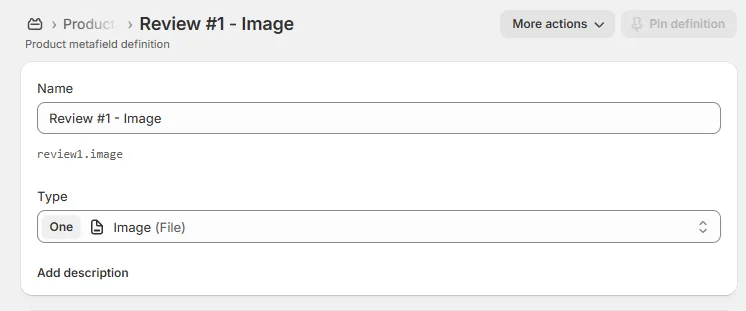
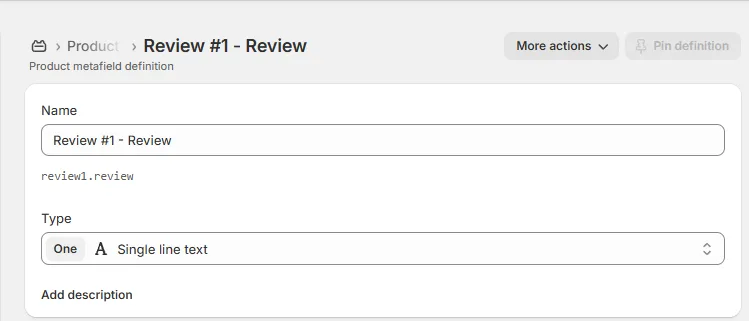
Click Save.
Repeat for each field, then for review #2 and #3.
Step 2: Connect the metafields to the block
In Shopify admin, open Online Store → Themes.
Click Customize on your theme.
Open your product template.
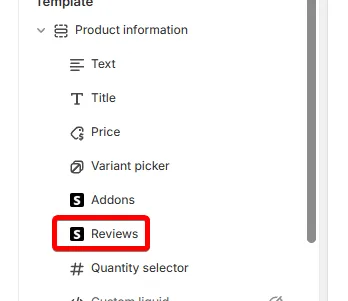
Select the Reviews block.
Next to Image #1, click the Connect dynamic source icon (three stacked circles).
Pick "Review #1 - Image".
Do the same for Name #1 and Review #1.
Repeat for #2 and #3.
Click Save.
Step 3: Fill in the metafields on each product
In Shopify admin, open Products, then a product.
Scroll down to Product metafields.
Fill in each review and pick each image.
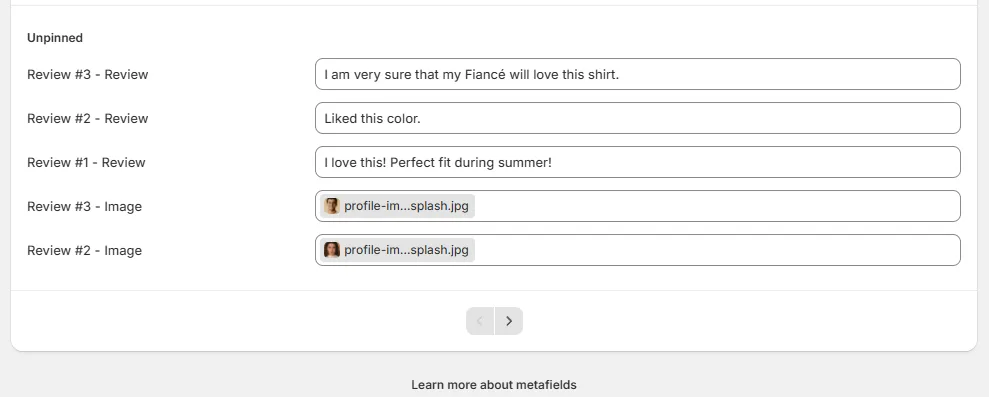
Click Save.
Repeat for each product.
Can't find your metafield? You may have many pinned definitions. Click View all.
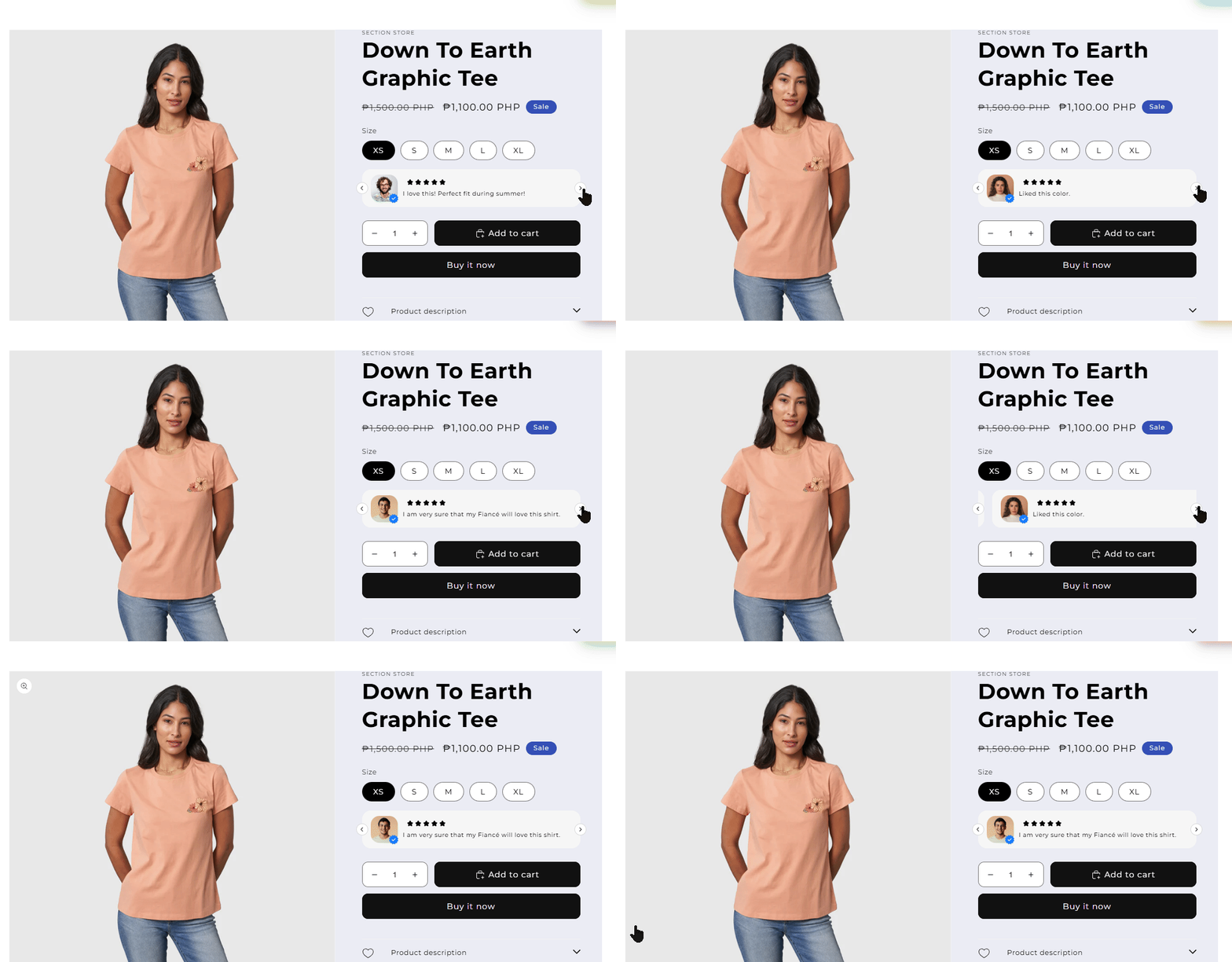
The product page now shows these reviews. The text comes from the metafields, not from the theme editor.
Good to know
- A card shows only when its review text is filled in. A product with no review text shows no cards.
- Every card shows five stars, unless Star style is None. You can't set stars per review.
- The block doesn't read reviews from a review app.
Related
- Add the Reviews block (review cards)
- Create dynamic upsell blocks for every product page
- Do the Review summary and Reviews blocks connect to my review app?
Also searched as: dynamic reviews, reviews per product, different reviews per product, reviews metafield, assign metafield, same reviews every product, reviews without templates, testimonials per product, namespace and key, single line text, image file metafield
Did this answer your question?