.png)
Add a countdown bar to your bundles
Add a Countdown bar to a bundle to show shoppers how long the deal has left. It counts down to the bundle's end date and hides once the deal ends. It is off by default, so existing bundles look the same until you turn it on.
Before you start
- The bar only shows when the bundle has an end date. In the bundle's Settings card, under Active dates, check Set end date and pick the End date and End time.
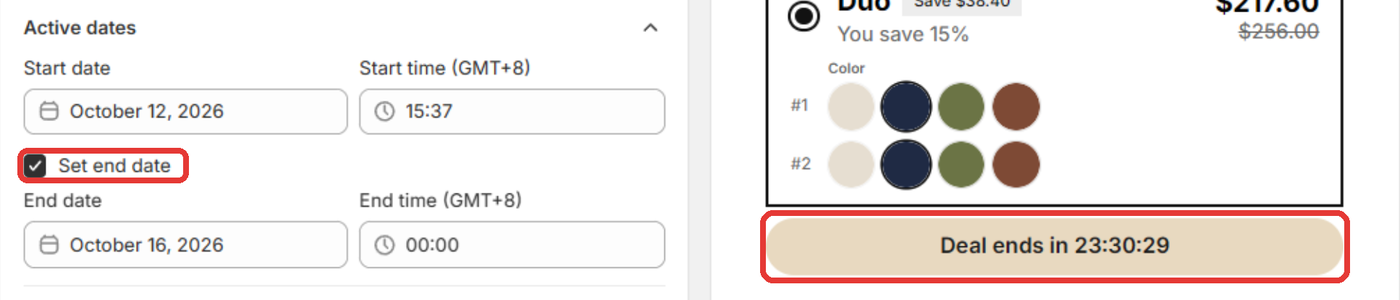
Turn on the Countdown bar
- Open Section Store → Bundles & Quantity Breaks.
- Open the Bundles / Quantity Breaks tab and open (or create) a bundle.
- Scroll to the Countdown bar card (below Checkbox upsells) and turn on the switch.
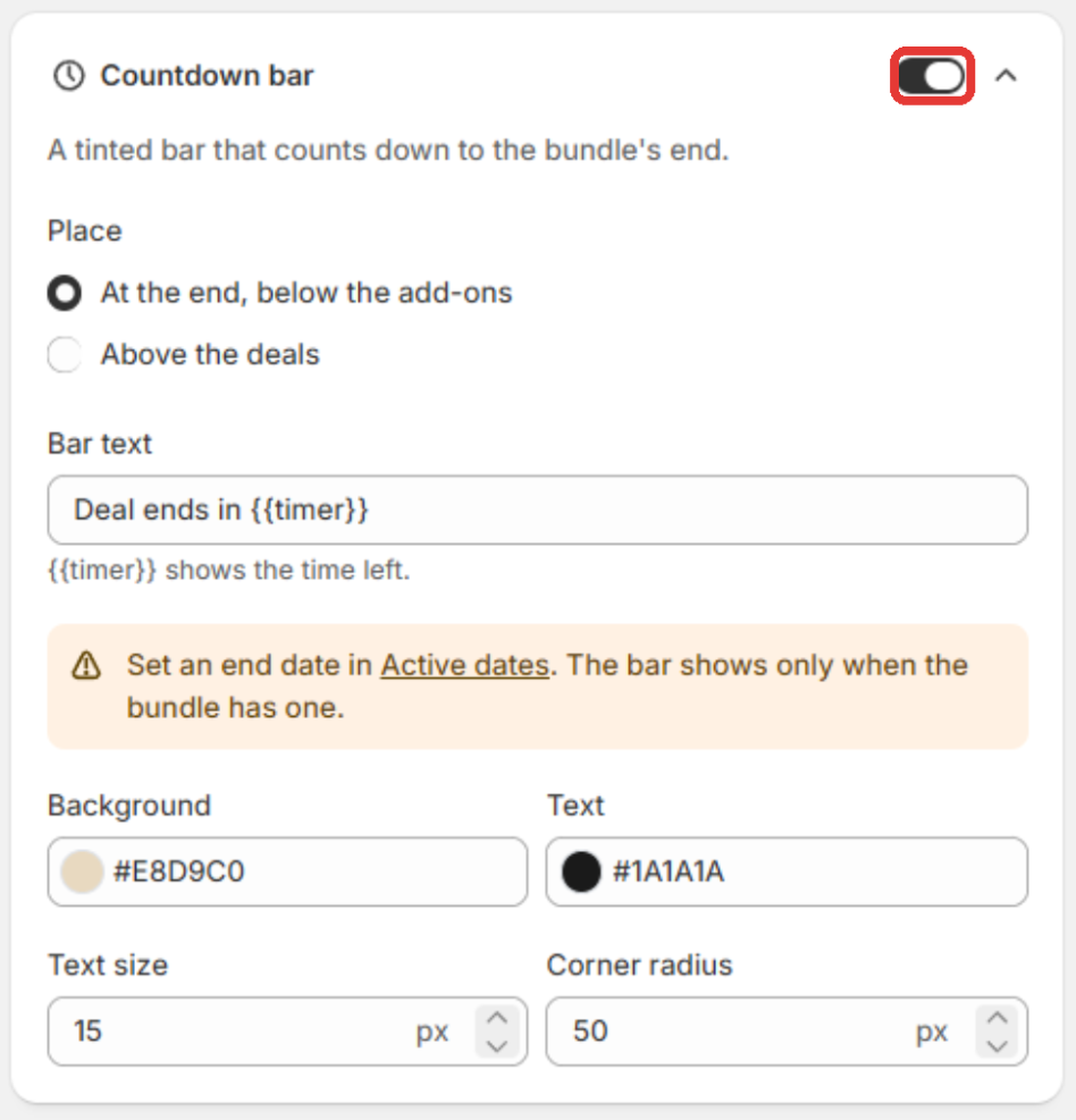
- Under Place, choose At the end, below the add-ons or Above the deals.
- Edit the Bar text if you like. Keep {{timer}} where the time left should appear (the default is Deal ends in {{timer}}).
- Pick the Background and Text colors, plus Text size and Corner radius.
- Click Save, then Publish if the deal is live.
Tips
- If you see Set an end date in Active dates, the bundle has no end date yet, so the bar won't show. Click Active dates in that message to jump there.
- To change when the countdown ends, change the end date in Active dates. The card shows the time it counts down to.
- The bar text starts in your store's language and can be translated like your other bundle text.