.png)
Start a bundle from a ready-made template
Don't want to design a bundle from scratch? The Bundles page has Bundles from top stores: 26 ready-made bundle designs you can try live, then set up on your own store in one click.
Where to find them
Open Section Store → Bundles. If you have no bundles yet, the templates show at the top of the page. If you already have bundles, scroll below your bundle list.
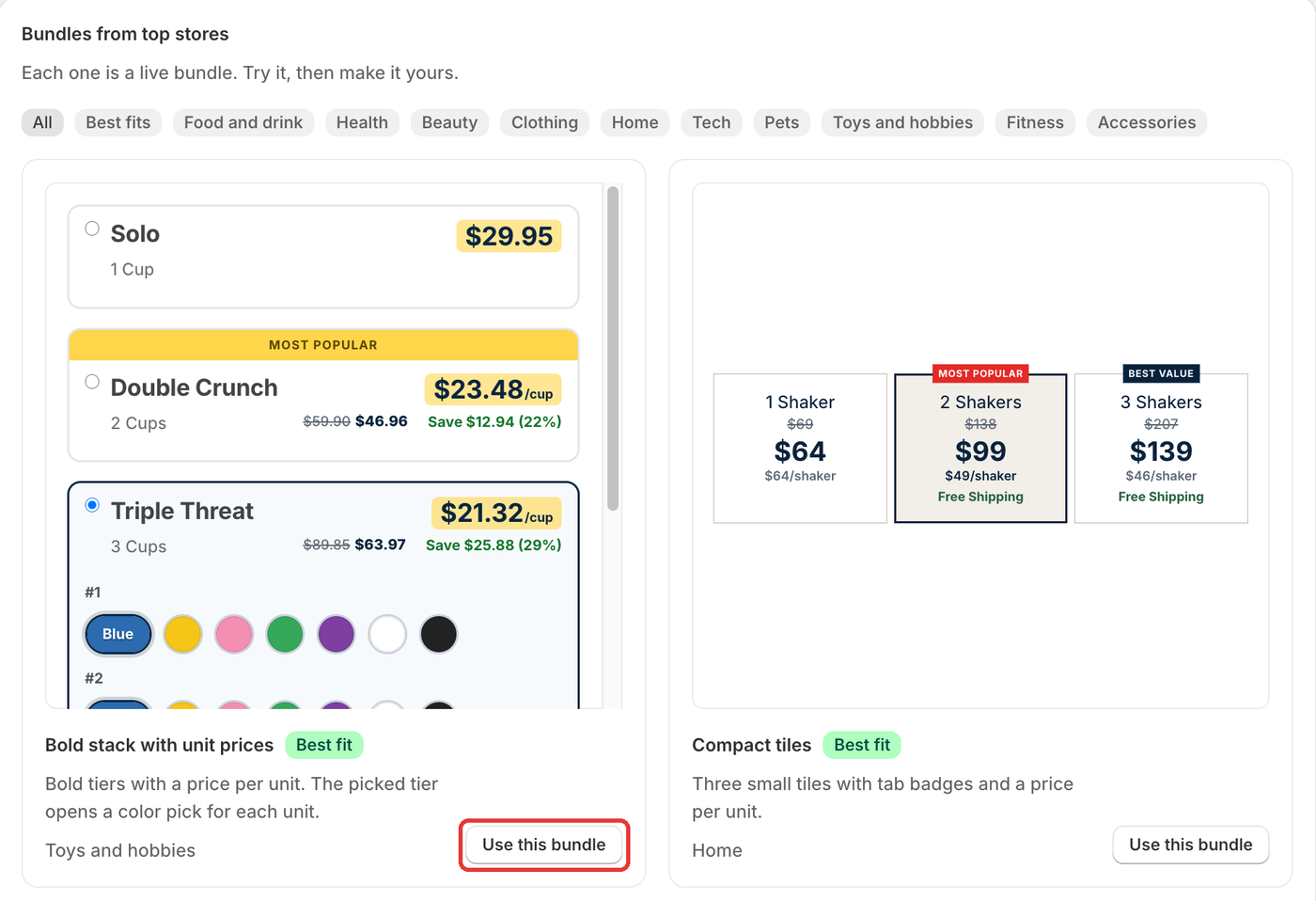
Use a bundle template
- Browse the cards. Each one is a live bundle on a sample product, so you can click through the deals. Use the chips (All, Best fits, or a type like Beauty or Pets) to narrow the list.
- Click Use this bundle on the one you like.
- Pick the look: Match my store look (your colors and corners) or Use as it looks (the template's own colors and corners). Then click Use bundle.
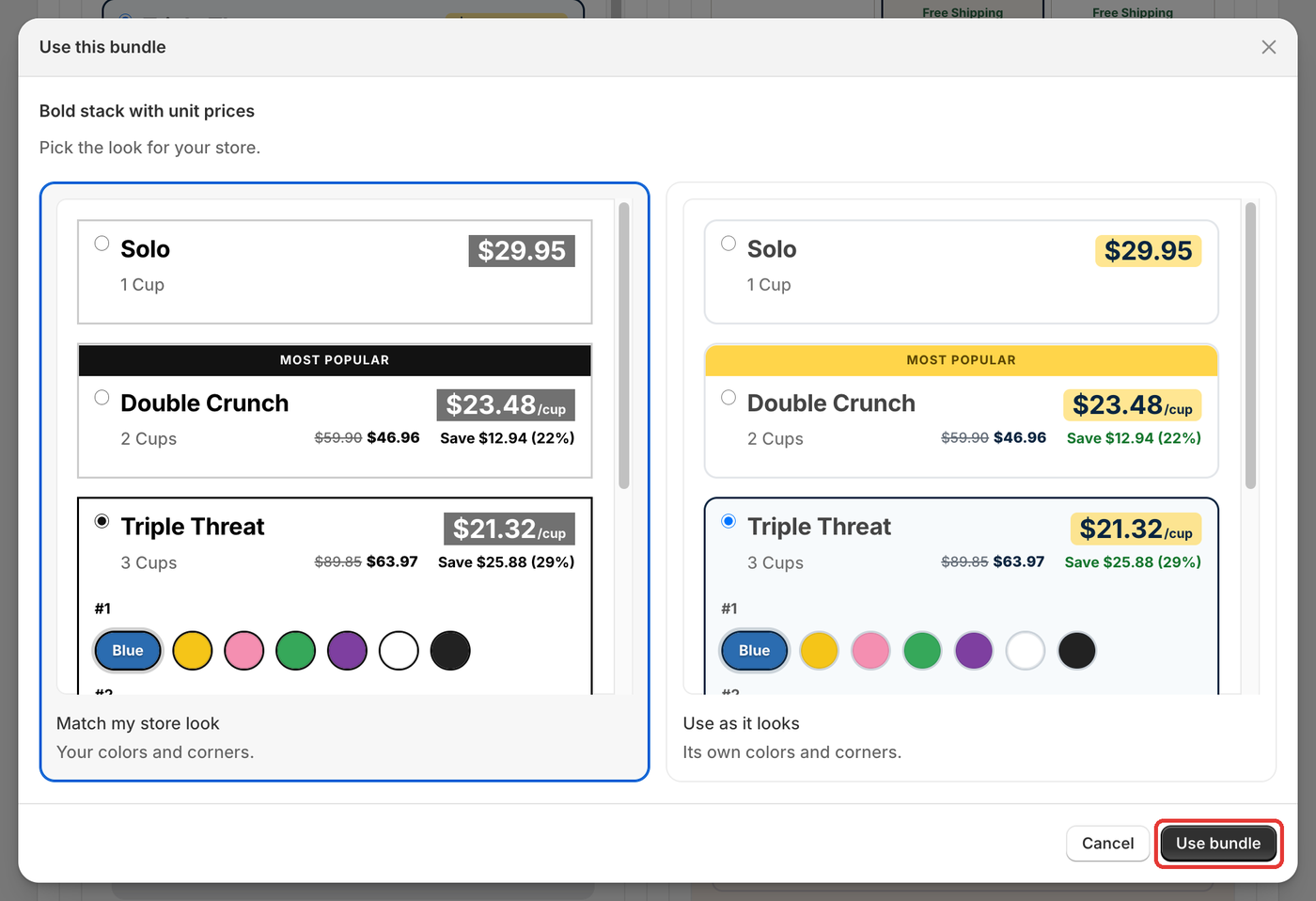
- The editor opens with the bundle set up on your best-selling product. Gift, add-on and kit slots are filled with your own products. It isn't saved yet.
- Read the blue banner at the top. Use Change products and Change discounts to check what the bundle shows on and what it gives.
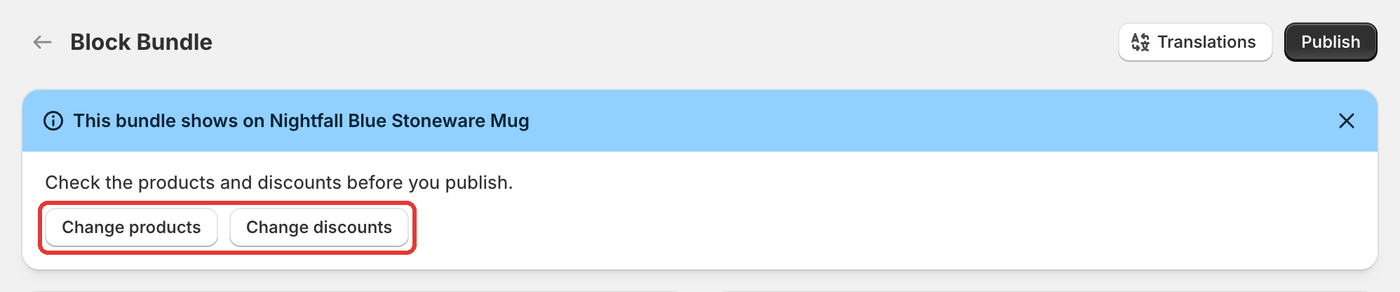
- Click Save, then Publish when you're happy.
Tips
- Cards marked Best fit match the kind of products you sell best.
- Fonts always follow your theme, whichever look you pick.
- On Section Store Plus, the bundle text is also rewritten to fit your product and store language. Without Plus, you keep the template's words and can save drafts, but you need Plus to publish live.
- If setup fails or times out, just click Use this bundle again.
- Bundles show on your product page through the Bundles app embed. If the new bundle doesn't appear, turn the embed on first.