.png)
Create and manage multiple Cart Drawers
With Section Store Plus, you can keep several Cart Drawer designs and turn one on at a time. Only one cart can be Active on your storefront.
Before you start
- You need Section Store Plus to enable a cart on your live store.
- Enable the Cart Drawer app embed in your theme (Enable cart drawer in theme on the Cart Drawer page) so shoppers can see the active cart.
Create or duplicate a cart
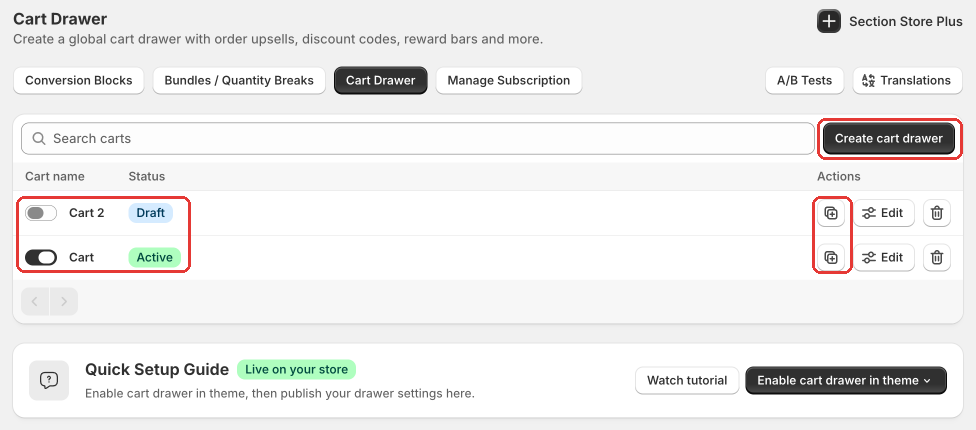
- Open Section Store → Cart Drawer.
- Click Create cart drawer. Or open an existing cart’s row and use Duplicate cart.
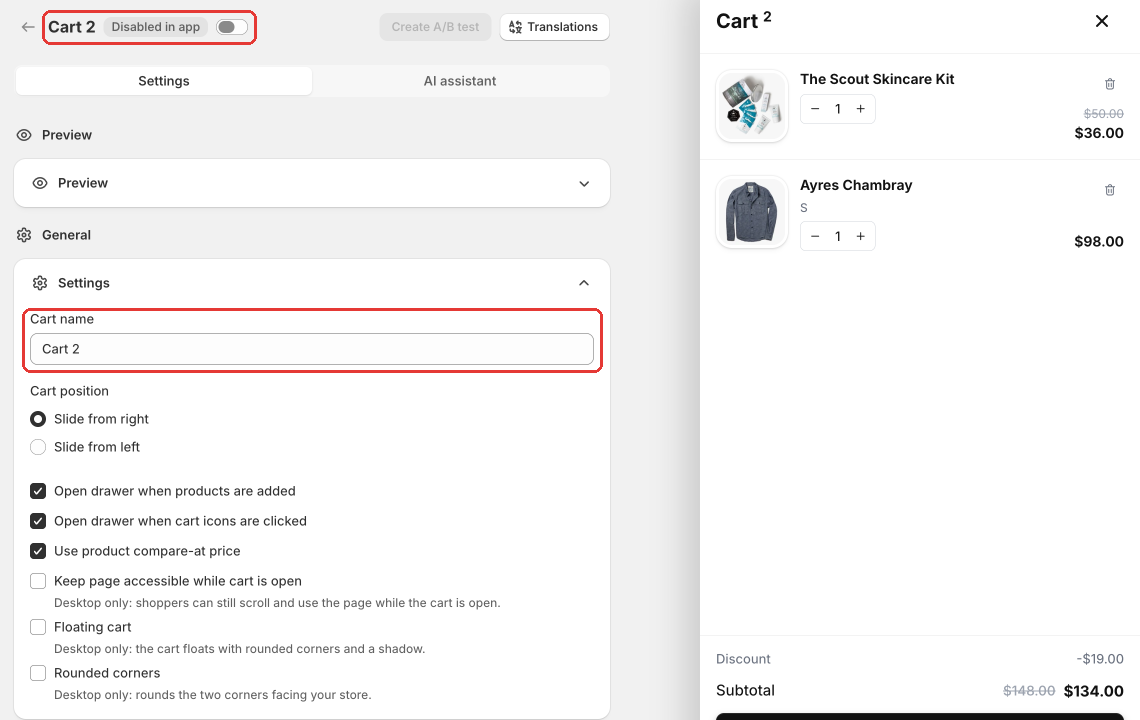
- In the editor, open Settings and set Cart name.
- Customize the drawer, then click Save.
Make a cart Active
- Back on the Cart Drawer list, find the cart you want live.
- Turn on the switch next to the cart name (label: Enabled). The status badge changes to Active.
- Any other cart that was Active becomes Draft automatically. Only one can be live.
- Or open the cart editor and use the same Enabled switch, then Save.
Translate cart text
- Open Translations → Cart.
- Choose a specific cart, or All carts, then pick the Target language.
- Edit translations and save. Storefront updates publish in the background.
Tips
- Use Search carts on the Cart Drawer list when you have many designs.
- To remove a cart: Delete cart → confirm. End a running A/B test on that cart first if you see that prompt.
- If a cart has a running A/B test, the list switch may say Disable and pause test or Enable and resume test instead of Enabled.
- Shopify sync for the active cart can show as pending and retries automatically. Wait a moment if the storefront has not updated yet.
- Reward discounts are shared across your carts; activating a different cart reuses the same Shopify discount where needed.