.png)
Copy a Section to Another Page (Same Theme)
Already set a section up on one page and want it on another page of the same theme? Copy it in the theme editor. The settings and content come with it, so there is nothing to redo.
Steps
- In the theme editor, open the page that has the section.
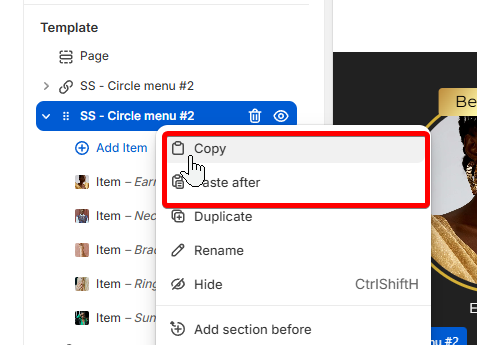
- In the left sidebar, right-click the section and choose Copy.
- Switch to the page or template you want it on.
- Right-click Add section and choose Paste.
- Click Save.
This works between pages and templates of the same theme. To move a section to a different theme, use Theme Migrator. For a header, footer or announcement bar that should show on every page, place it in the header or footer group instead of copying it page by page.