.png)
How to use AI Pages
AI Pages builds a home page, product page, or any other page for your store — with copy and images. Nothing goes live until you review it and choose to publish, assign, or switch.
Before you start
- You need an active Section Store Plus subscription (or trial) to start a build.
- Each build uses one credit from the shared AI pool (5 free per store, then buy more). The app shows this as builds left.
- Pick a real theme you control — not a Shopify demo or protected theme.
Open AI Pages
- Open Section Store.
- In the app menu, click AI Pages.
- Choose a card:
- Home page → Build home page
- Product page → Build product page
- Any page → Build a page (about, landing, campaign, and similar)

From Home you can also click Build a page on the AI Pages card. From Conversion Blocks, Set up with AI opens the product-page builder.
Build a product page
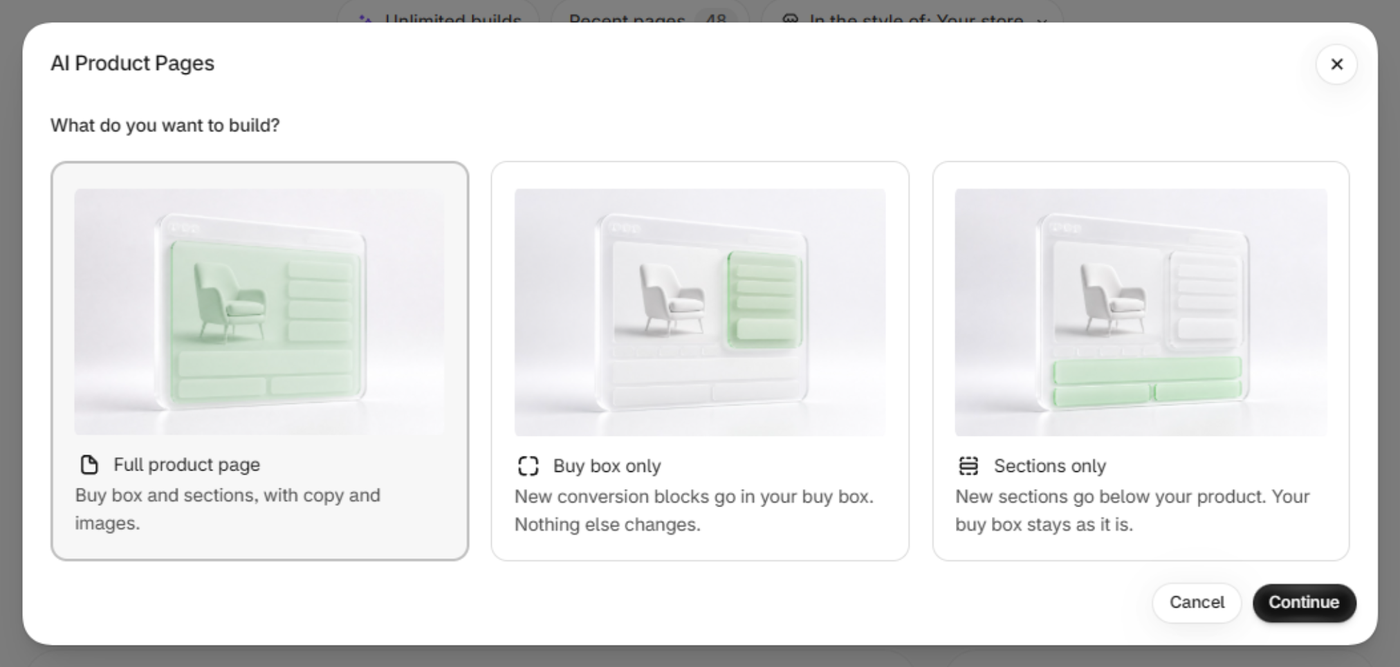
- Under What do you want to build?, pick one:
- Full product page — buy box and sections, with copy and images.
- Buy box only — new conversion blocks in your buy box; nothing else changes.
- Sections only — new sections below the product; your buy box stays as it is.
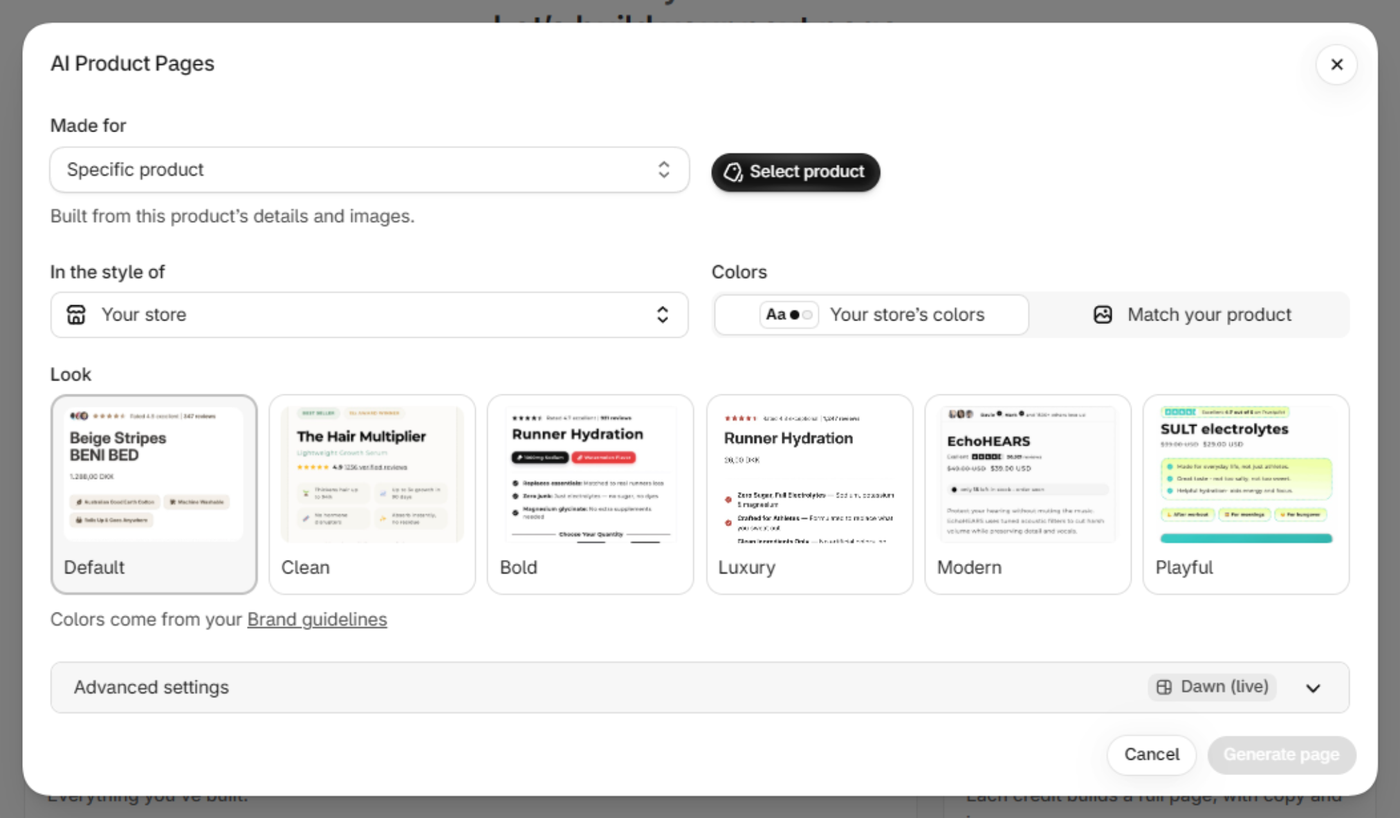
- Under Made for, choose Specific product, Collection, or Any product. Select the product or collection when asked.
- For a full page or sections only, wait while it checks your source template. Under Keep below the new page, leave checked the sections you want to keep.
- Optional: set In the style of and Colors (for example Your store’s colors or match the product). With your store’s style, you can also pick a Look.
- Optional: open Advanced settings to choose the Theme, Template name, Start from template, or add a Focus.
- Click Generate page, Generate buy box, or Generate sections (matches your choice). A full page usually takes a few minutes.
- When it finishes, click Open theme editor to review, then Choose products (or assign to the product/collection) so customers can see it.
Build a home page or any page
- Home page: click Build home page, set style if you want, then Generate home page. Your live home page stays until you click Use as home page. You can Restore original home page later.
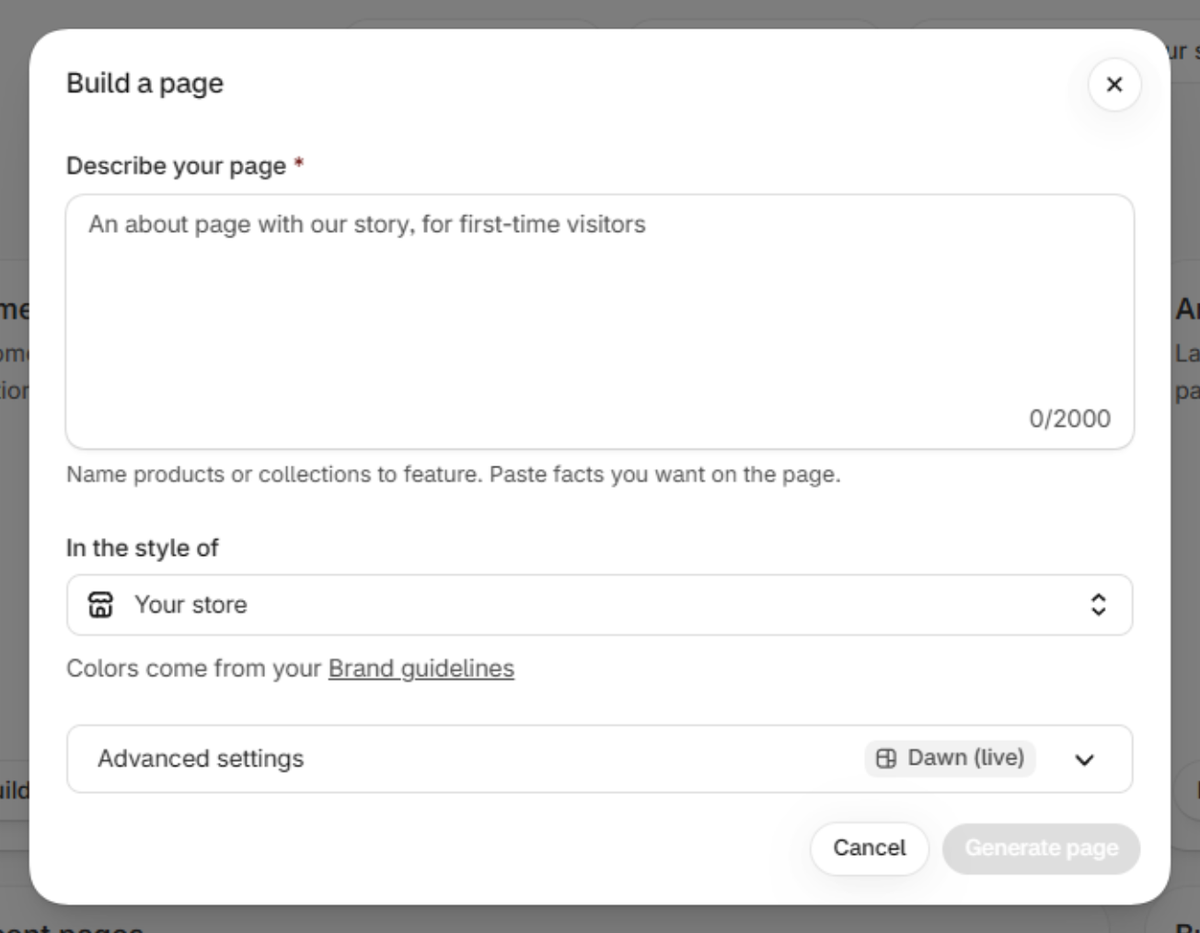
- Any page: click Build a page, fill in Describe your page, then Generate page. When it’s ready, review it in the theme editor, click Publish page, and optionally Add to main menu.
Tips
- Past builds live under Recent pages on the AI Pages screen.
- Store colors for new pages are managed in Brand guidelines (Plus). Open it from the style hint on the build form, or from AI Pages.
- If you run out, use Buy credits. Credits are one-time through Shopify and do not expire.
- Without Plus, the chip shows builds with Plus — start a Plus trial to use them.